You can become an Upscale trader through @upscaletradebot or in the web version at upscale.trade — the feature set is identical.
Three steps to get started
Sign in
You can sign in through a social network or by connecting a crypto wallet. The method has no effect on anything that follows — pick whichever suits you.
Enter a promo code
This step is optional. A promo code unlocks special conditions and promotions.
Pay for the challenge
Choose an account size, an asset category and a challenge format, then pay using any available method. Once payment is confirmed, the account appears in the app and trading becomes available straight away.
Sign-in methods
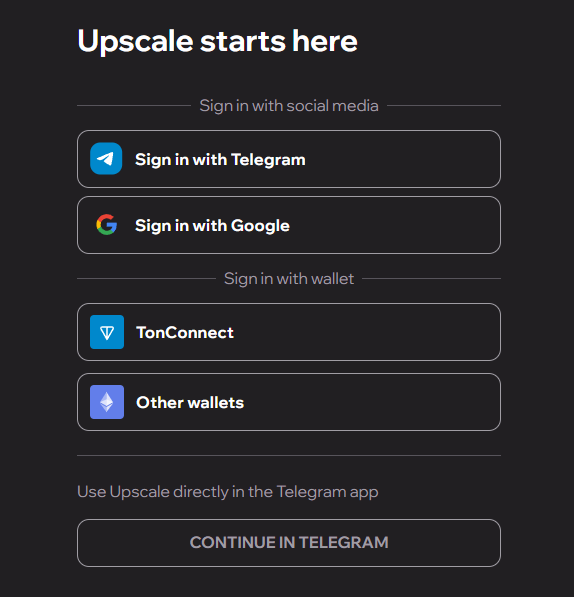
Telegram. You will be redirected to the Telegram interface to confirm the sign-in. Tap "Allow" to grant Upscale access to your profile.
Google. A Google authorisation window opens. Enter your account details and grant access — you will then land in your dashboard.
TonConnect — for TON wallets. Connects Tonkeeper and other TON-based wallets. You will need to scan a QR code with your wallet or confirm the connection inside the app.
WalletConnect. A universal protocol supporting a wide range of mobile and desktop wallets. Scan the QR code with your wallet app or confirm the authorisation.
Other wallets — Coin98, MetaMask, Trust Wallet, OKX, Rabby, Phantom, Rainbow, Browser Wallet and more. Browser extensions show a popup asking you to approve the account connection; mobile wallets ask for confirmation inside the app.
Promo code
An invitation code is entered at checkout and unlocks special conditions. The step is optional: without a code, the challenge is purchased as normal.
Current codes and giveaways are published in the Upscale Telegram channel.
Changing your referrer
Your referrer is the user whose code brought you to the platform. You can change them yourself: go to the Referrals section, find the block showing who invited you and tap the edit icon. In the window that opens, enter the new referrer's referral code and confirm the change — the confirmation screen shows their name.
| Condition | Value |
|---|---|
| When it is available | only before your first purchase: while the account has no paid accounts. Tournament accounts, demo accounts and accounts received with a promo code do not block the change |
| Number of changes | no more than three in total |
| Interval | at least 45 days since the previous change |
If you have no referrer yet, you can add one in the same block. Adding a referrer for the first time does not count as a change: it does not use up the limit and does not start the interval.
You cannot enter your own code, your current referrer's code, or the code of a user you invited directly or through your own referrals.
If the change is unavailable, the input window does not open — a message at the top of the page explains why: the date when a change becomes available, the requirement to change the referrer before the first purchase, the limit being used up, or the change being unavailable for this account. The code input window shows how many changes are left. If it is the last one, the confirmation screen warns that the referrer will then stay fixed permanently.
Payment methods
| Payment method | Where available |
|---|---|
| Telegram Stars | App and web |
| GRAM | App and web |
| USDT (TON) | App and web |
| USDT (TRC-20) | Web only |
| USDT (BEP-20) | Web only |
| USDT (ERC-20) | Web only |
| USDC (ERC-20) | Web only |
| SOL (Solana) | Web only |
| USDT (Solana) | Web only |
| USDC (Solana) | Web only |
| ETH (Ethereum) | Web only |
| BNB (BEP-20) | Web only |
| TRX (Tron) | Web only |
| Bank card (Visa, Mastercard, Apple Pay, Google Pay) | Web only |
The payment method has no effect on the account size or the terms of the challenge.
How to choose a payment method
Crypto on BEP-20, TRC-20, ERC-20 and Solana — web version only. Select the network, connect your wallet and confirm the transaction.
Telegram app — Stars, GRAM and USDT on the TON network.
Bank card — click "Pay by card" in the payment selection window to open a secure Stripe page. The final amount, including the payment provider's fee, is shown before you confirm.
Supported wallets
| TON network | Other networks |
|---|---|
| Tonkeeper | WalletConnect |
| Wallet | Coin98 Wallet |
| Tonhub | MetaMask |
| Klever Wallet | Trust Wallet |
| Proton Wallet | OKX Wallet |
| Rabby Wallet | |
| Phantom | |
| Rainbow | |
| Solflare | |
| Bitget Wallet | |
| Coinbase Wallet | |
| Exodus | |
| Browser Wallet |
For payments on Solana you can use Phantom, Solflare, Trust Wallet, MetaMask, OKX Wallet, Bitget Wallet, Coinbase Wallet, Exodus and other wallets that support the network.
Challenge formats, account sizes and the cost of participation are listed on the Getting Started page.